|
Meshcore Companion User Guide |
A practical guide for new users in our emergency communication network
 |
|
|
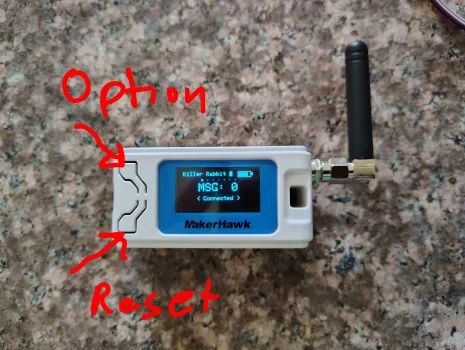
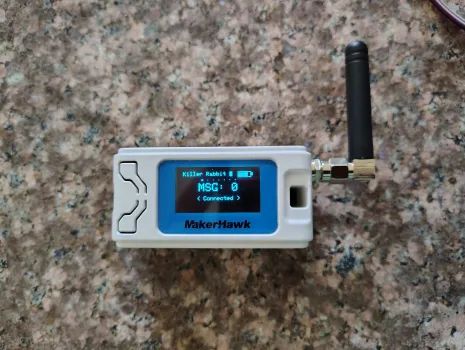
Reset: Reset or wake up a companion. If it cycles, resetting over and over, the battery probably needs to be charged. .
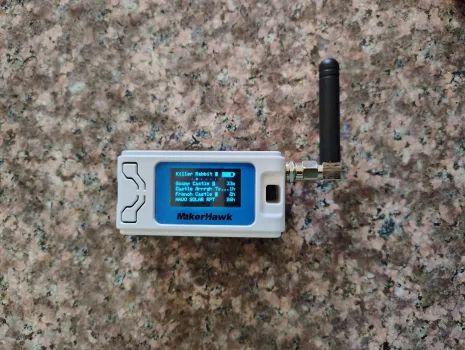
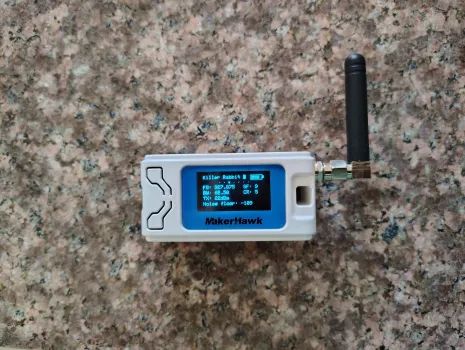
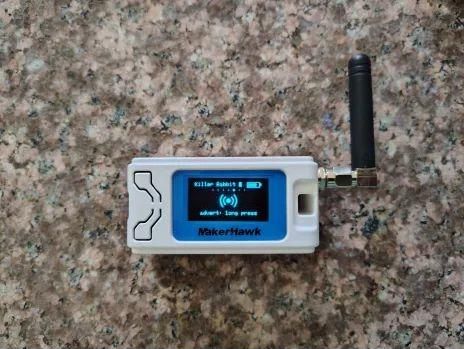
Option: Cycle through the option screens. If the companion is showing recent messages, long press the option button to get to the regular option screens.
1. Introduction
The Meshcore Companion App allows your smartphone to send and receive short text messages using a Meshcore LoRa device (called a companion). The app connects to your device via Bluetooth, not the cellular network or the Internet. This makes Meshcore a reliable communication method during emergencies or infrastructure outages.
This guide walks you through installing the app, pairing your device, sending messages, checking network status, and troubleshooting.
2. What You Need
Before using the app, you must have:
- No license is required.
- A Meshcore companion device (ESP32-based or similar)
- The device flashed with Meshcore firmware (see Getting Started)
- A charged internal battery or USB-C power
- A
smartphone with:
- Bluetooth enabled
- The Meshcore Companion App installed (Android or iOS)
3. Installing the Meshcore App
Android
- Open the Google Play Store.
- Search for "Meshcore"
- Tap Install.
- Open the app once installation completes.
iOS
- Open the App Store.
- Search for "Meshcore
- Tap Get.
- Open the app after installation.
4. First-Time Setup
Turn on your Meshcore device
- Power it via USB-C or ensure the internal battery is charged.
- The device should automatically begin broadcasting over Bluetooth.
Enable Bluetooth on your phone
- Go to your phone's Bluetooth settings.
- Ensure Bluetooth is ON.
Open the Meshcore app
The app will automatically begin scanning for nearby Meshcore devices.
Pair your device
- If prompted, allow Bluetooth permissions.
- Press the name of your companion when it appears in your companion list.
- Type the Bluetooth passcode displayed on the device
- If the screen is blank, press the option button.
- The app will connect and display your device status.
Once paired, the app will remember your device for future sessions.
Note: you may need to pair the companion device in the phone's Bluetooth options before it appears in the Meshcore companion list. However, it usually appears without doing so.
5. Communicating
Contact List
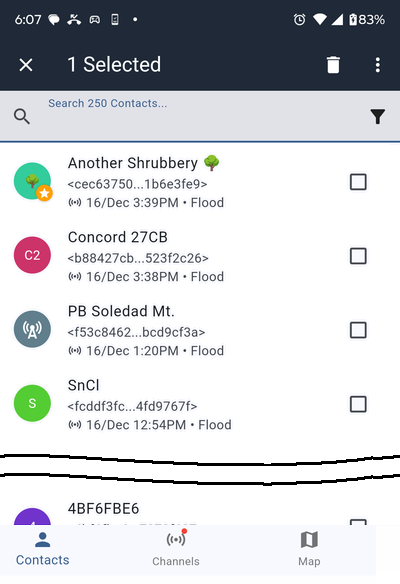
- As other companion devices send adverts, they will appear in your contact list.
 |
|
|
- If you want to communicate directly with another companion device
that is not on your contact list, have the user of that device send an
advert.
- If your devices are within range of each other, or you are both in range of repeaters that can reach each other, their device will be added to your contact list
- Also send an advert so that you will appear on their contact list.
- Once you appear on each other's contact lists, you can send direct messages.
Sending a Direct Message (DM)
 You
can't send messages to repeaters which are identified by this icon.
You
can't send messages to repeaters which are identified by this icon.
- Press the Contacts icon at the bottom of the screen (see the above image).
- Press the entry for the device you want to send the message to in you contact list
- Type the message in the Send a message... window at the bottom of the screen.
- Press the paper airplane icon.
- While the messages is sending you will see a circle with three dots under the message
- When the message is acknowledged the circle will change to a gray circle with a white checkmark.
Sending a broadcast message on a channel
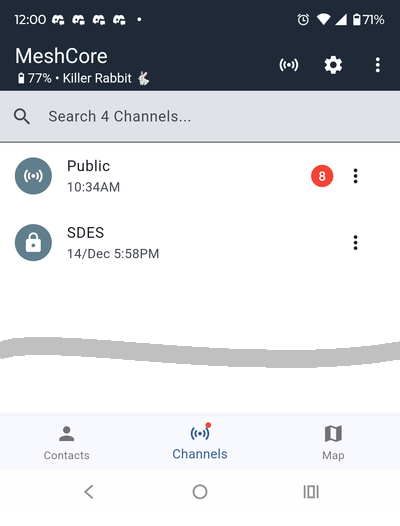
- Press the Channels icon at the bottom of the screen
 |
|
|
- Select the channel you want to send the message on.
- Type the message in the Send a message... space.
- Press the paper airplane icon.
- While the message is sending you will see a circle with a
black checkmark under the message
- Companion units that receive the message will not send ACKs. Therefore, you cannot know if any companions received the message.
- When a repeater receives and repeats the message the circle
will change ot a black circle with a white checkmark
and you will see how many repeaters repeated the message.
- To see which repeaters repeated the message, long press the message then press Heard Repeats.
- While the message is sending you will see a circle with a
black checkmark under the message
Receiving messages
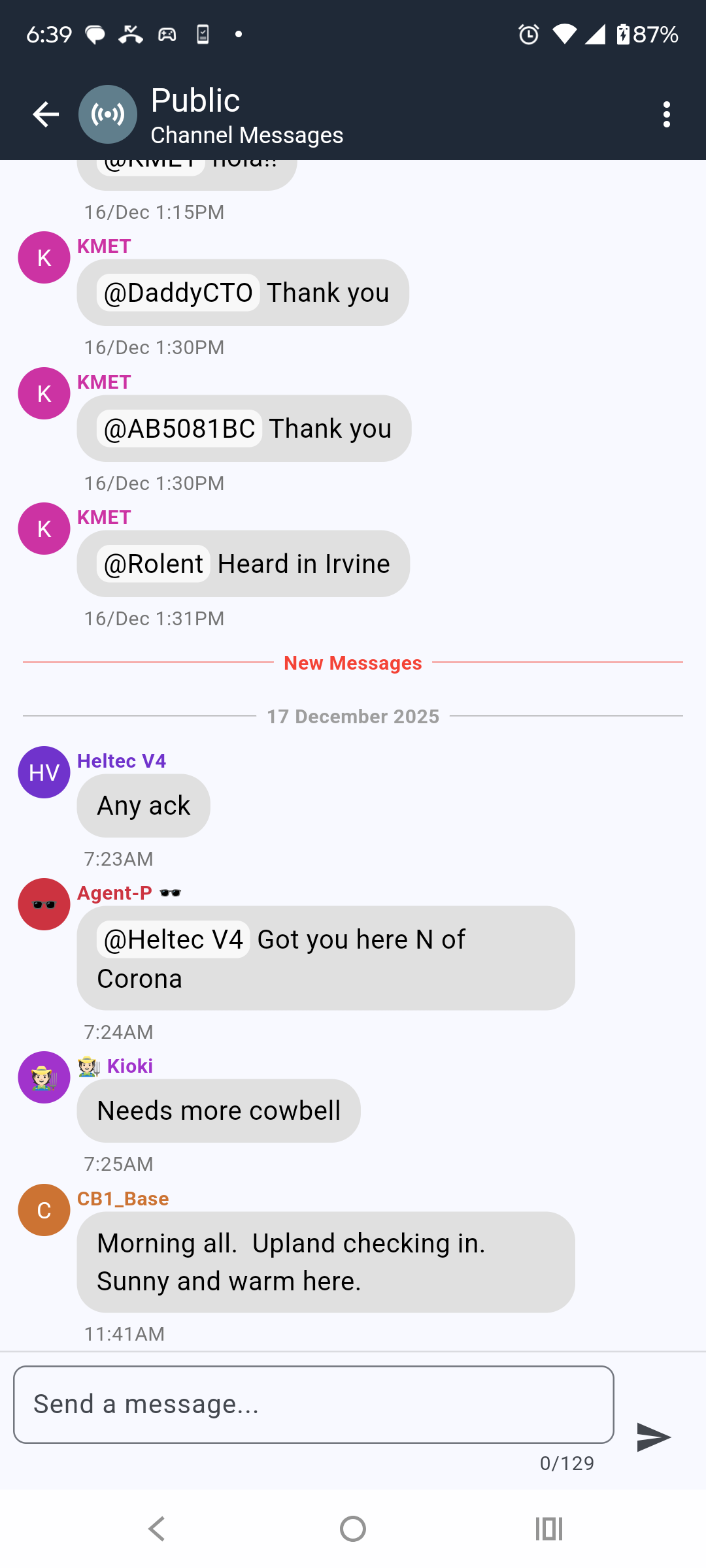
- Waiting messages are indicated by a red dot with a number indicating
the number of waiting messages.
- Messages may come on channels or individual devices in you contact list.
- Press the contact or channel to see messages.
 |
|
|
- Long press a message for the following options:
- Press Reply to reply to the messasge.
- Replies to messages on a channel are not direct messages. A reply simply shows the companion name at the beginning of the message telling everyone that you are replying to a particular message.
- Press View Message Path to see if it was received directly or what
repeater or repeaters it came through.
- The phone must be connected to the companion when the messages is received to store path information.
- Press Reply to reply to the messasge.
- Press a repeater in the repeater list to see what path the messages
took to reach you.
- There may be multiple repeaters in the list. This just means you received the message via multible repeaters.
- Press a repeater then press the repeater in the next screen to
see its properties.
- The properties screen allows you to see where the repeater is on the map.
- You can also Ping repeaters that you can reach directly.
- This sends a request to respond. If the repeater hears the ping it will respond and you know you can reach that repeater directly.
Advanced Features
6. Device Settings
Open the Menu (press the gear icon) to access configuration options.
Name
- Set a unique name so others can identify you.
Public Key
- Copy only, if you are instructed to .
Latitude / Longitude
- Select your location on the map (press the
map icon) to have your unit appear on the map in other people's companions
and on the Internet map.
- If your unit has a GPS module (such as the SenseCAP T1000-E) your
location is sent whenever you send an advert.
- However, this apparently not dynamic; According to the documentation, you must reset the unit to update the locaton via GPS.
- If your unit has a GPS module (such as the SenseCAP T1000-E) your
location is sent whenever you send an advert.
Share position in Advert
- Tick this box if you what your location broadcast with your adverts. You must enable this to appear on the maps.
Radio Settings
- See Getting Started for the radio settings.Radio Settings
Manage Identity Key
- For exporting and importing your private key. This is for backing up and restoring your device identity.
Bluetooth Settings
- Change your Bluetooth passkey
Contact Settings
- Manages how adverts are handled. By default, when your companion hears an advert, the advertising companion or repeater is added to the contact list.
Message Settings
- Auto retry — Your companion will retry messages if an ACK (acknowledgement) is not received.
- Auto Reset Path — If you don't receive an ACK, the last try will send the message as a flood, i.e., it will tell all repeaters to repeat the message to establish a new path.
- Direct Message Acks — When you send a DM (direct message) directed to a particular companion as opposed to a broadcast on a channel, the receiving companion will send an ACK. If an ACK is lost (perhaps by two devices trying to transmit at the same time) you won't receive an ACK. Here you can tell your companion to send multiple ACKs.
Notification Settings
- Manages when notifications are sent to you.
Position Settings
- Does not apply to companions without a GPS receiver.
Telemetry Settings
- Manages how telemetry requests are handles. Only applies to devices with environment sensors except for location.
Theme
- Choose the appearance theme for your companion
Import / Export Config
- For moving your identity and data to another companion device
Purge Data
- Wipes all data in your companion device and Meshcore app.
Bug Reporting / Debug Logs
- Allows automatic but reporting to the Meshcore team. You may be asked to send a copy of your debug logs if you communicate with other Meshcore users or the Meshcore team for help with problems.
Factory Reset
- Returns the companion device to its original state
Reboot
- Restarts the companion device. The same as pressing the Reset button on the device.
7. Understanding Range and Connectivity
Meshcore devices communicate in two ways:
Direct Communication
If two companions are close enough (often several miles line of sight), they can talk directly.
Repeater-Based Communication
If out of direct range, messages travel through dedicated repeaters.
Meshcore supports up to 64 hops, allowing messages to travel long distances across a network.
8. Troubleshooting
The app cannot find my device
- Ensure the device is powered on.
- Check that Bluetooth is enabled.
- Move the phone closer to the device.
- Restart the app.
- Reboot the device.
- It's not uncommon to lose your Bluetooth connection, if things aren't working check your connection and reestablish if necessary.
Messages are not sending
- You may be out of range of any repeater.
- Try moving to higher ground or outdoors.
- Check that your device is paired.
- Ensure
your channel and region settings match the network.
- Frequency: 927.875MHz, Bandwidth: 62.5MHz, Spreading Factor: 7,
Coding Rate: 5
- The coding rate does not have to match other units. A coding rate of 8, which sends more error correction data, may improve your connectivity.
- Frequency: 927.875MHz, Bandwidth: 62.5MHz, Spreading Factor: 7,
Coding Rate: 5
Messages are not being received
- Confirm you are on the correct channel.
- Check that your device is still connected via Bluetooth.
- Verify that your device has battery power.
New units aren't showing up in the Contacts screen even though I know an advert was sent.
- Your contact memory may be full.
- Look at the total contacts at the top of the contact list. If it is
an spething like 300 or 350, your contact list may be full. If so, delete some old contact to add new ones.
- Hopefully, an app update will delete old contacts automatically.
- Look at the total contacts at the top of the contact list. If it is
an spething like 300 or 350, your contact list may be full. If so, delete some old contact to add new ones.
App crashes or freezes
- Restart the app.
- Update to the latest version.
- Reboot your phone.
9. Best Practices for Reliable Communication
- Keep your device charged.
- Place the antenna vertically for best performance.
- Send an avert if you have not used your device for a long period of time
- Test your device regularly.
- Keep
your phone within a few feet of your companion device.
- Bluetooth can range up to 50 feet under good conditions, but remaining within 25 feet or closer is more reliable.
10. Safety and Emergency Use
Meshcore is designed for:
- Emergency communication
- Infrastructure outages
- Disaster response
- Church coordination
- Neighborhood preparedness
It is not a replacement for 911 or professional emergency services.
11. Getting Help
If you need assistance:
- Contact your local Mesh Coordinator (currently me).
- Ask in one of
the Meshcore Discord communities.
- Meshcore
- West Coast Mesh
- SoCal Mesh
- San Diego Mesh
- So Cal Stakes Emergency Response Mesh
- Refer to this website for guides and updates.
Screens
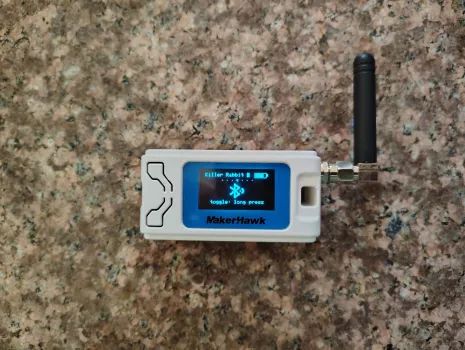
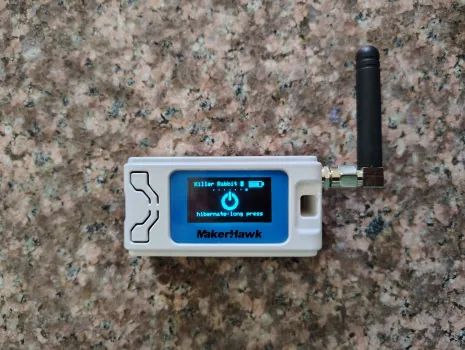
Press the Option button to get to advance screens.
 |
|
|
 |
|
|
 |
|
|
 |
|
|
 |
|
|
 |
|
|
|
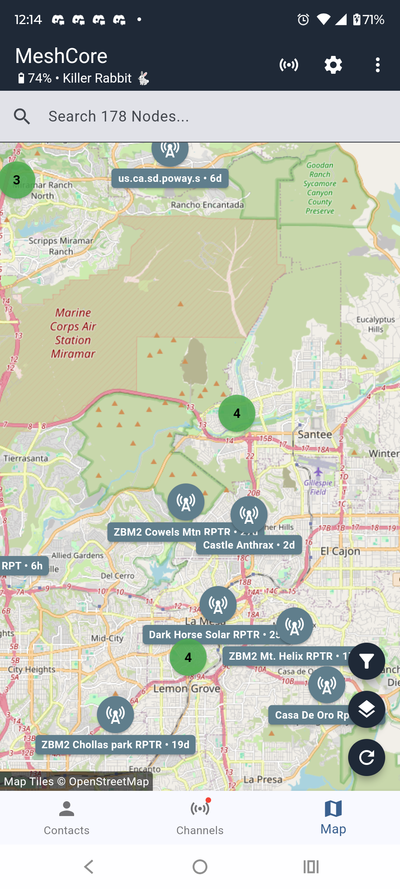
- The map shows the locations of repeaters and companion nodes that
your node has received adverts from. Only nodes that have a latitude and
longitude set in their configuration appear on the map.